Updated August 16, 2026
Steam Deck status
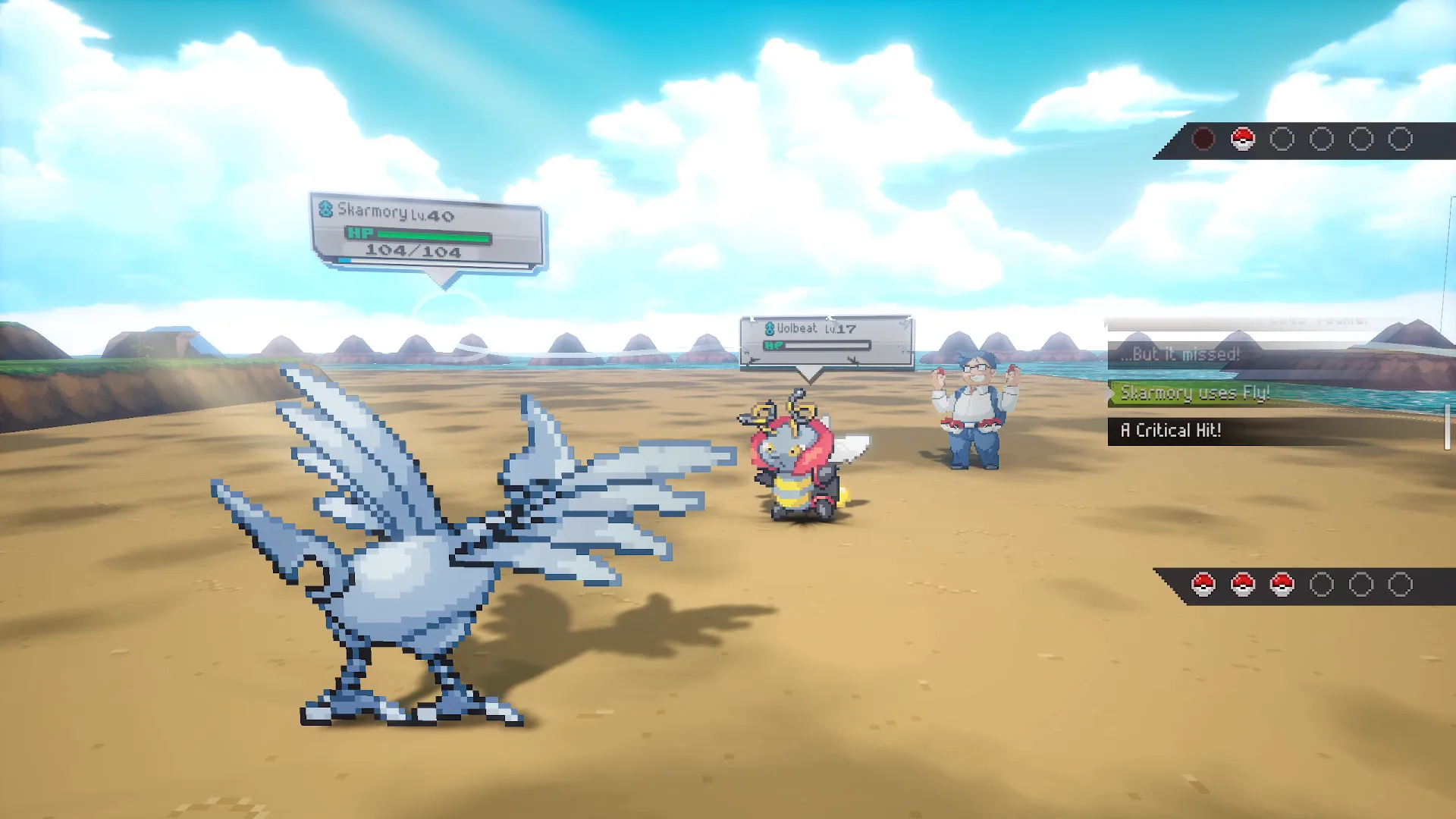
Gamma Emerald does not currently have a native Linux or official Steam Deck build. Players are running the Windows release through Proton, with mixed launch and controller results. Treat this as experimental compatibility, not a promised platform.
Install as a non-Steam game
- Switch to Desktop Mode and download the current Windows EA from the official release page.
- Unzip the entire game into a stable folder on internal storage or a fast microSD card.
- Open Steam, choose Add a Game → Add a Non-Steam Game, browse, and select
PokemonEmerald.exe. - Open the new shortcut's Properties, select Compatibility, and force Proton Hotfix as the first test.
- Return to Gaming Mode and launch. Allow extra time for the first shader compilation.
- If it does not open, test Proton Experimental as one controlled alternative.
Controller layout
Start with a standard Gamepad template. Gamma Emerald expects one controller, so do not layer a second desktop mapper over Steam Input. If menus double-step, disable extra action sets and confirm that only one controller appears. If the game ignores the Deck controls, use the touchscreen or a temporary keyboard to confirm the game itself reached the main menu.
Protect the save before changing Proton
Close the game and copy the complete PokemonEmerald\Saved folder from your chosen game directory. If you move the shortcut or game folder, find Slot1.sav before assuming the save is gone. Proton prefixes and file-browser paths can hide the same folder under a different route.
| Problem | Safe next test |
|---|---|
| Black screen on first run | Wait for CPU activity and shader work; do not force-close immediately. |
| Instant return to Steam | Switch once between Proton Hotfix and Experimental. |
| Controls not detected | Use one Gamepad template and remove additional remappers. |
| Heavy battle stutter | Free storage and memory; use internal storage for a comparison. |
| Save appears missing | Search the game folder and Proton prefix for Slot1.sav. |